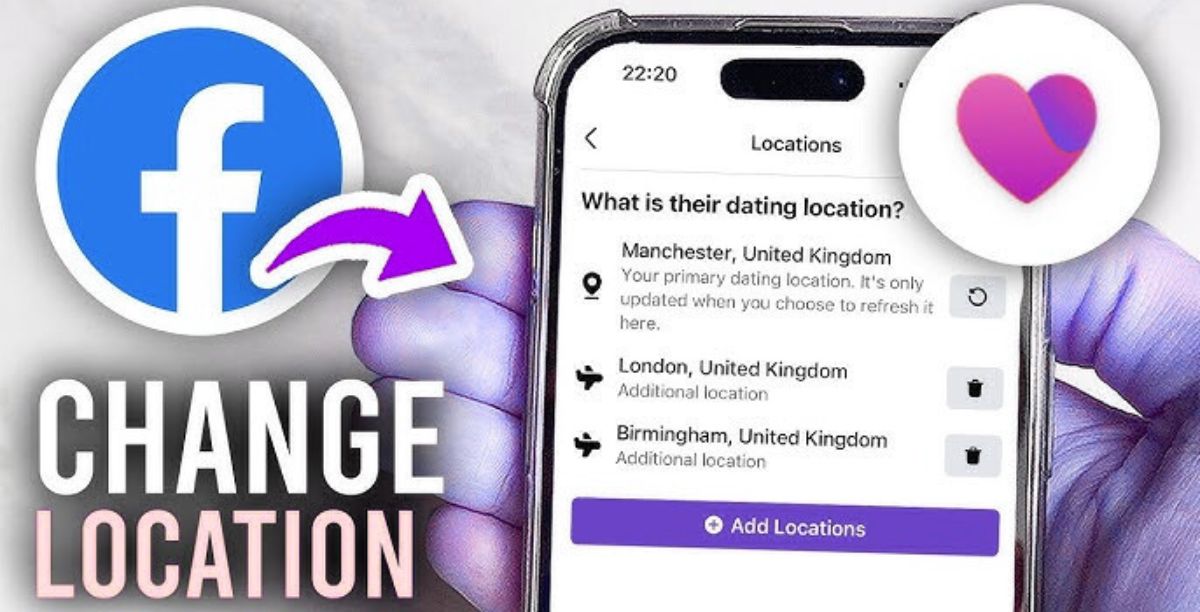
Before You Start (Important)
Facebook Dating does not let you freely type any city like some apps. Instead, it uses:
-
Phone GPS (primary signal)
-
Facebook app location permissions
-
Dating profile settings
-
Your general Facebook profile location
-
Nearby Places activity
So changing only one setting often won’t work — you must align them.
Method 1 — Change Location Inside Facebook Dating (Main Method)
This is the safest and recommended approach.
Step-by-Step
-
Open the Facebook mobile app
-
Tap Menu (☰)
-
Select Dating
-
Tap Profile
-
Tap Edit Dating Profile
-
Find Dating Location
-
Tap it and update your new city
-
Confirm and save
Tip: After saving, close the app completely and reopen it.
Method 2 — Turn On Phone GPS Location (Very Important)
If GPS is off, Facebook ignores your new location.
Android
-
Open Settings
-
Tap Location
-
Turn ON
-
Set to High Accuracy
-
Open Facebook → allow location access
iPhone
-
Open Settings
-
Tap Privacy & Security
-
Tap Location Services
-
Select Facebook
-
Choose While Using the App
Now reopen Facebook Dating — matches should refresh within minutes.
Method 3 — Update Your Main Facebook Profile City
Facebook Dating syncs with your main account data.
Steps
-
Go to your Facebook profile
-
Tap Edit Profile
-
Edit Current City
-
Save changes
Wait about 10–30 minutes before reopening Dating.
Method 4 — Clear Facebook App Cache (Fix Stuck Old Location)
Android
-
Settings → Apps → Facebook
-
Storage → Clear Cache
-
Force Stop app
-
Reopen
iPhone
iPhones don’t clear cache manually:
-
Delete the app
-
Reinstall from App Store
-
Log back in
Method 5 — Enable Location Refresh Trick (For Instant Change)
This forces Facebook to re-detect your area.
-
Turn OFF phone location
-
Open Facebook Dating
-
Close the app
-
Turn location ON again
-
Walk outside or move physically (important)
-
Reopen Dating
Your match radius will update faster.
Method 6 — Change Distance Preferences
Sometimes the location updates but your distance filter hides matches.
-
Open Dating → Settings
-
Tap Match Preferences
-
Increase distance radius (e.g., 200 km)
-
Save
Now you’ll see people from the new area.
Why Your Location Won’t Change (Common Problems)
Issue Cause Resolution
Old matches are still visible.GPS turned off Make specific location possible
Matches don’t have city updates.saved cache Empty the cache
No matches in the area Minimal radius Extend the distance
Facebook location resets via IP Activate GPS and mobile data.
Dating missing Not accessible in the area Await the deployment.
How Long It Takes to Update
Usually:
-
Immediate: 5–10 minutes
-
Average: 30 minutes
-
Worst case: 24 hours
Avoid repeatedly changing cities — it slows the update.
Pro Tips (Works Best)
-
Keep Facebook app open while moving to new area
-
Use mobile data instead of Wi-Fi first time
-
Open Maps app before Facebook (activates GPS lock)
-
Don’t use VPN — Facebook may freeze Dating access
Privacy Note
Changing your location does not notify friends and your main profile location can remain hidden if your privacy settings are restricted.
Conclusion
Updating your Facebook Dating location is simple once you understand that Facebook relies on real-world signals, not just manual entry. To successfully change your match area:
-
Update Dating location
-
Turn on GPS
-
Update profile city
-
Refresh app data
When these align, Facebook instantly begins showing people from your new area — giving you better conversations, relevant matches, and real meeting opportunities.
If you want, I can also show you how to match with people in another country without traveling (there’s a safe trick many users don’t know).